Integrate Cloud PBX with AI Agents
An AI agent can answer customer calls, provide assistance, take requests, and transfer a call to an employee when needed.
To connect an AI agent to Cloud PBX, use a SIP account. In this case, the AI agent connects to Cloud PBX as a separate employee and receives calls to its extension number.
Follow the steps below to connect an AI agent.
Step 1. Add an Employee
In your Cloud PBX account, go to Employees and click Add employee.
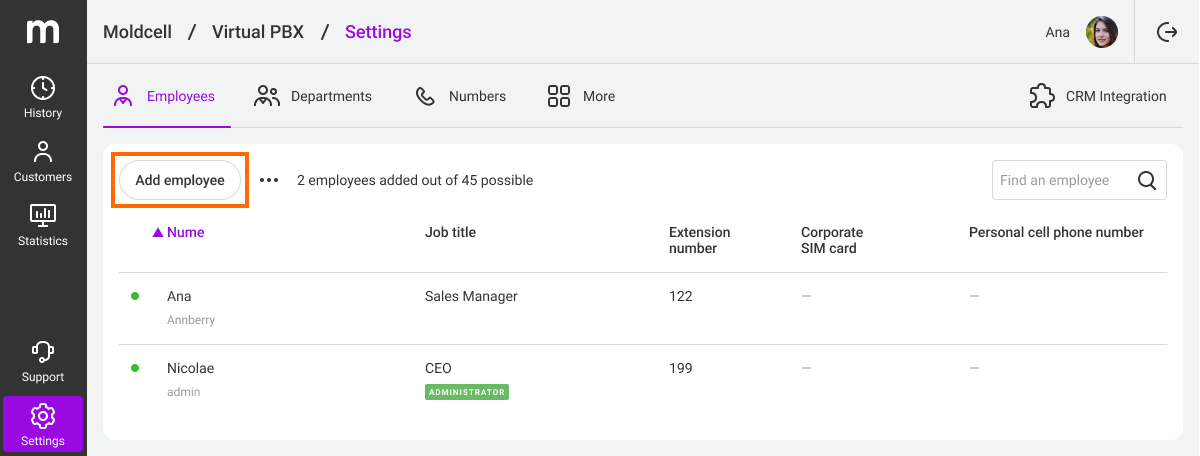
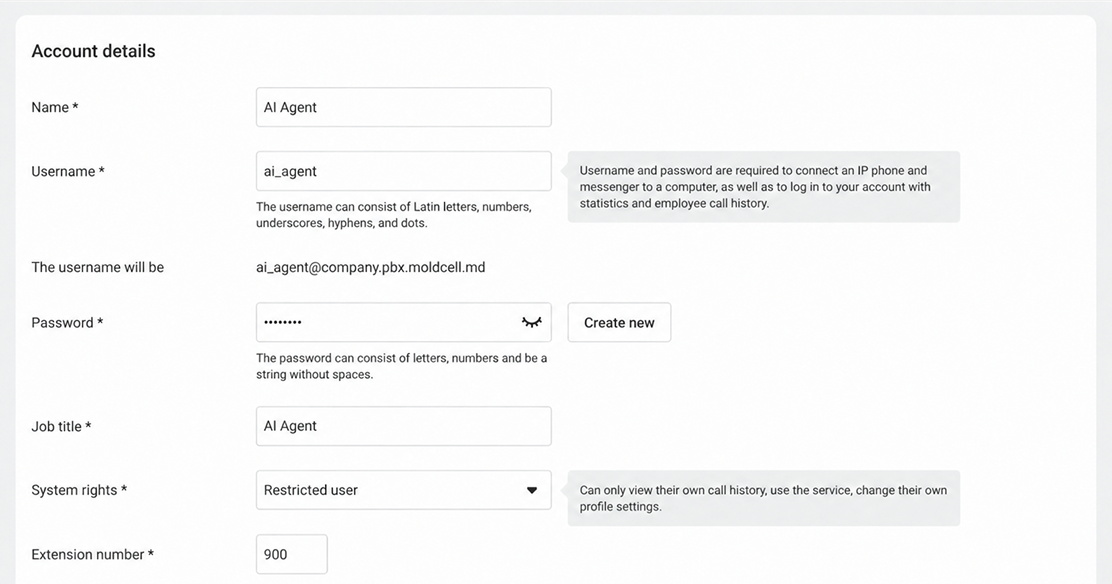
In the window that opens, fill in these fields:
- Name — enter any name, for example, AI Agent.
- Username — this field is filled in automatically.
- Password — create a separate password for this user. Do not use your account password.
- Job title — specify that this is a technical user, for example, AI Agent.
- System rights — select minimal rights so the agent cannot change Cloud PBX settings.
- Extension number — select an available number, for example, 900.
Make it easier
For AI agents, use a dedicated range of extension numbers. For example, you can reserve numbers 900-999 for technical users. This makes it easier to tell them apart from regular employees.
Step 2. Allow the Agent to Receive Calls
On the same page, scroll down to the Receiving calls section. Make sure this setting is enabled: Receive calls to a desk phone and computer. This setting must be enabled so the agent can receive incoming calls.
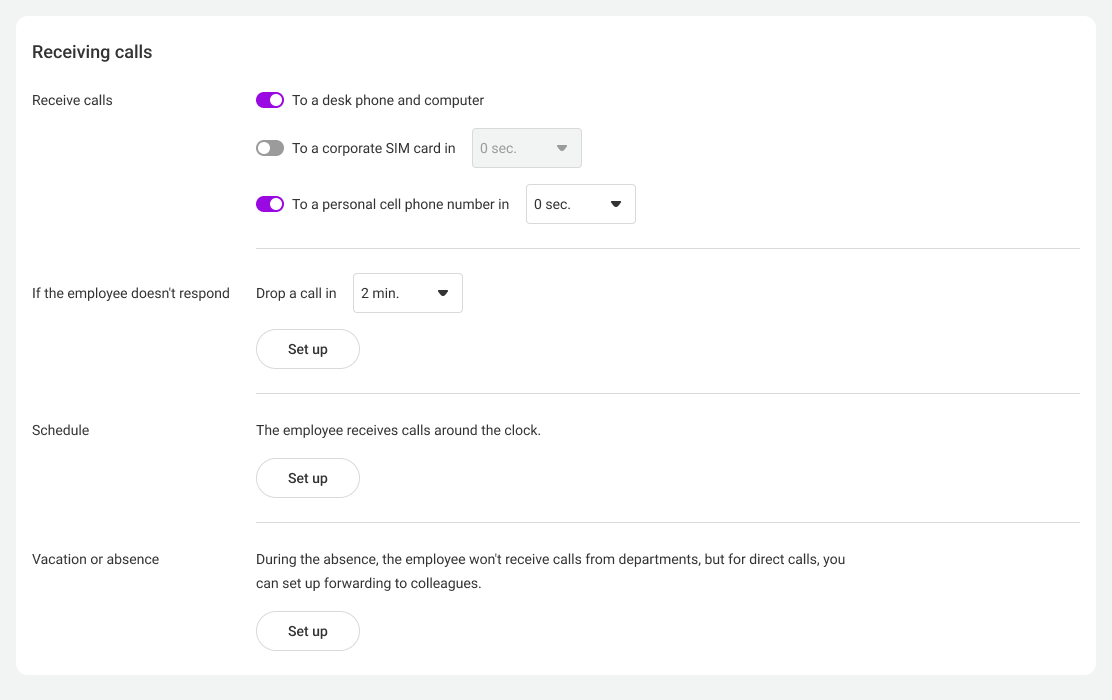
Click Save.
For an AI agent, enabling call receiving is enough. You don't need to connect a desk phone or install the app on a computer — the AI service will use this employee's SIP account.
Step 3. Get SIP Details
After saving the settings, open the employee card. In the Account details section, find the following details:
- SIP username — the username of the created employee, for example ai_agent@company.pbx.moldcell.md
- SIP server — everything you see after the @ symbol in the username.
- SIP password — the employee password;
- extension number — the number assigned to the employee in the previous step.
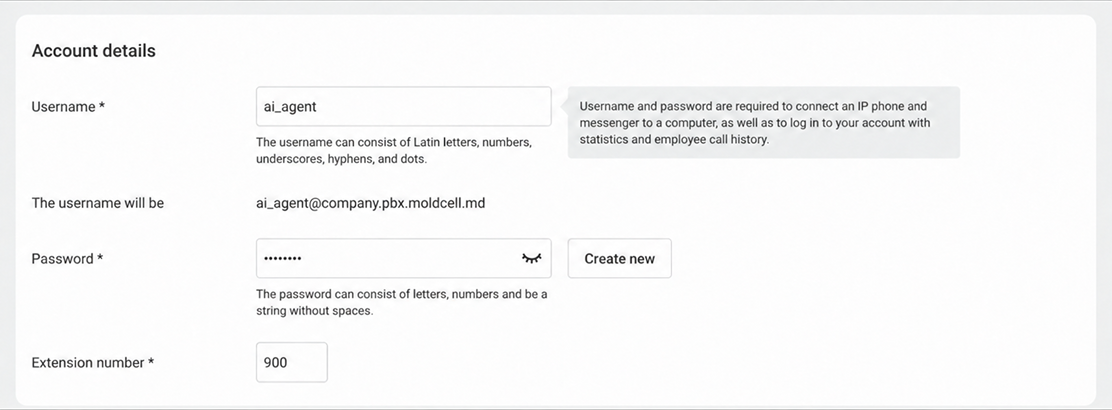
You will need these details at the next step to set up the AI agent connection to Cloud PBX.
Step 4. Prepare the AI Agent
To connect to Cloud PBX, use an AI agent that supports SIP connection.
The exact settings depend on the service or app that you use. Before setup, make sure the AI agent can work with a SIP account.
If the service you use asks for additional SIP parameters, use the values specified in its instructions.
Please note
Do not share the SIP password with unauthorized persons or publish it publicly. For an AI agent, use a separate technical user instead of a regular employee's account.Step 5. Enter SIP Details in the AI Service
Open the settings of the AI service that you use and find the section related to telephony connection. Depending on the service, this section may be named SIP, SIP Account, VoIP, Telephony, Phone, or something similar.
Select SIP connection and enter the details that you received in step 3. Field names may differ by AI service.
After you save the settings, the AI service must connect to Cloud PBX.
If the service shows the connection status, make sure the SIP account is registered.
Step 6. Set Up Incoming Call Reception
Depending on the AI service that you use, incoming call routing can be set up either in Cloud PBX or directly in the AI service.
If you set up the route in Cloud PBX, go to the Numbers section, open the settings of the required number, and select the AI agent employee that you created in step 1 as the call recipient.

If you set up the route in the AI service, in its settings, specify the AI agent extension number assigned in step 1.
Example
For example, if extension number 990 is assigned to the AI agent, specify employee or extension number 990 in the route settings.If the AI agent must receive calls to a specific landline number, route this number to the AI agent.
Step 7. Set Up Call Transfer
If the AI agent must transfer a call to an employee, in the AI service settings, specify the employee number to which the call must be transferred. For example, if a manager has extension number 101, specify 101.
The AI agent can transfer a call to an employee if the customer asks to speak with a manager or if the agent cannot resolve the issue without human assistance.
Please note
The ability to transfer calls depends on the AI service that you use. Make sure your service supports SIP call transfer to an extension number.Step 8. Test the AI Agent
After setup, make a test call to the number that you set up for the AI agent. Check that:
- the AI agent takes the call;
- the customer hears the AI agent;
- the AI agent hears the customer;
- the AI agent answers questions;
- the call does not get disconnected;
- transfer to an employee works (if it is configured).
If the AI agent does not take the call, first check the SIP connection status in the AI service.
If the SIP account is not registered, check that the entered details are correct.
If the SIP account is registered but the call does not reach the AI agent, check the incoming route settings.
Done! The AI agent is connected to Cloud PBX and can receive incoming calls. Further setup of the greeting, conversation script, knowledge base, and other features is done in the AI service that you use.