Connecting the Website Callback Widget to Google Analytics
Google Analytics is a service that collects detailed statistics about visitor activity on your website.
With Google Analytics, you can measure the effectiveness of your website callback widget and understand how customers interact with it: how many times it was opened, how often a phone number was entered, and how many callback requests were submitted.
Please note
This guide applies to Google Analytics 4.A click on the widget is considered a key event, which means integrating the callback widget with Google Analytics helps you:
- measure the widget’s actual conversion rate;
- run ad campaigns billed by key events;
- see which channels bring in leads;
- set up retargeting for customers who requested a callback but did not complete a purchase;
- evaluate performance across different site and landing pages.
To do this, a Google Analytics tracking tag must be installed on your website.
For more details about the service and how to create a tracking tag, please see this article.
How to Set Up Goals for the Website Callback Widget in Google Analytics
1. Install the callback widget on your website and connect it to Cloud PBX. Please see more about setup here.
2. Sign in to your Google Analytics account and go to the Admin section.
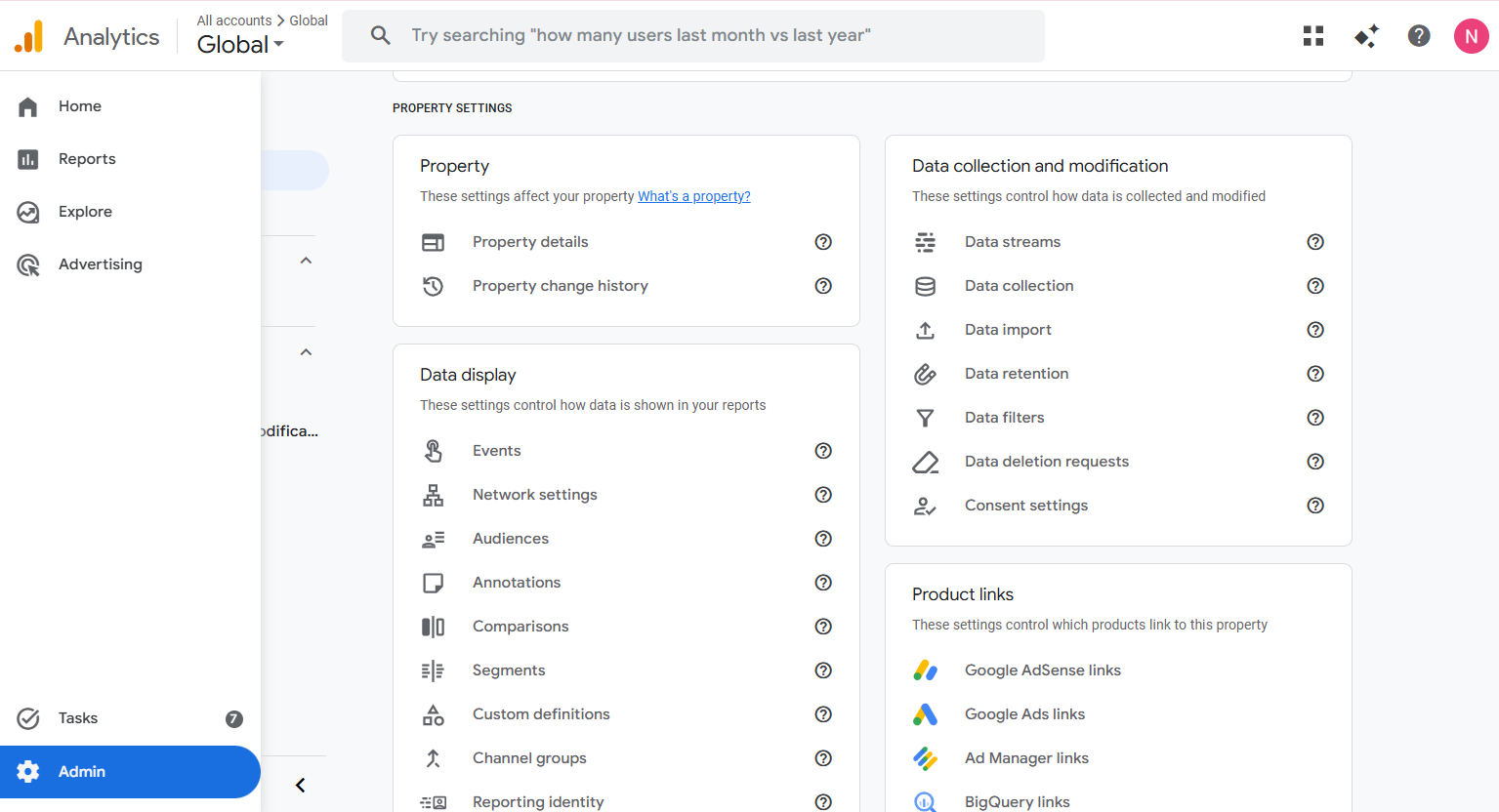
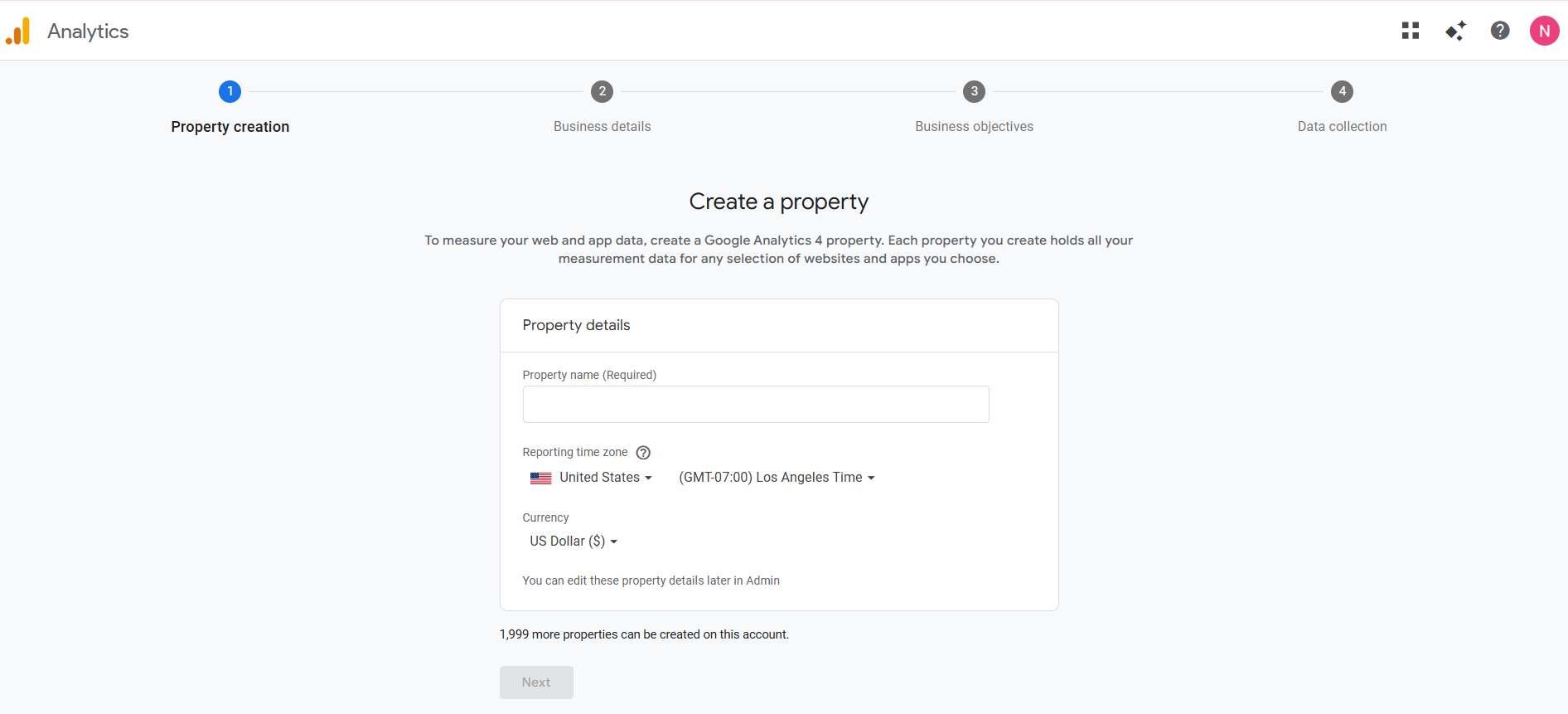
3. Create a new property: enter a name, specify your company details, business objectives, and your website URL.
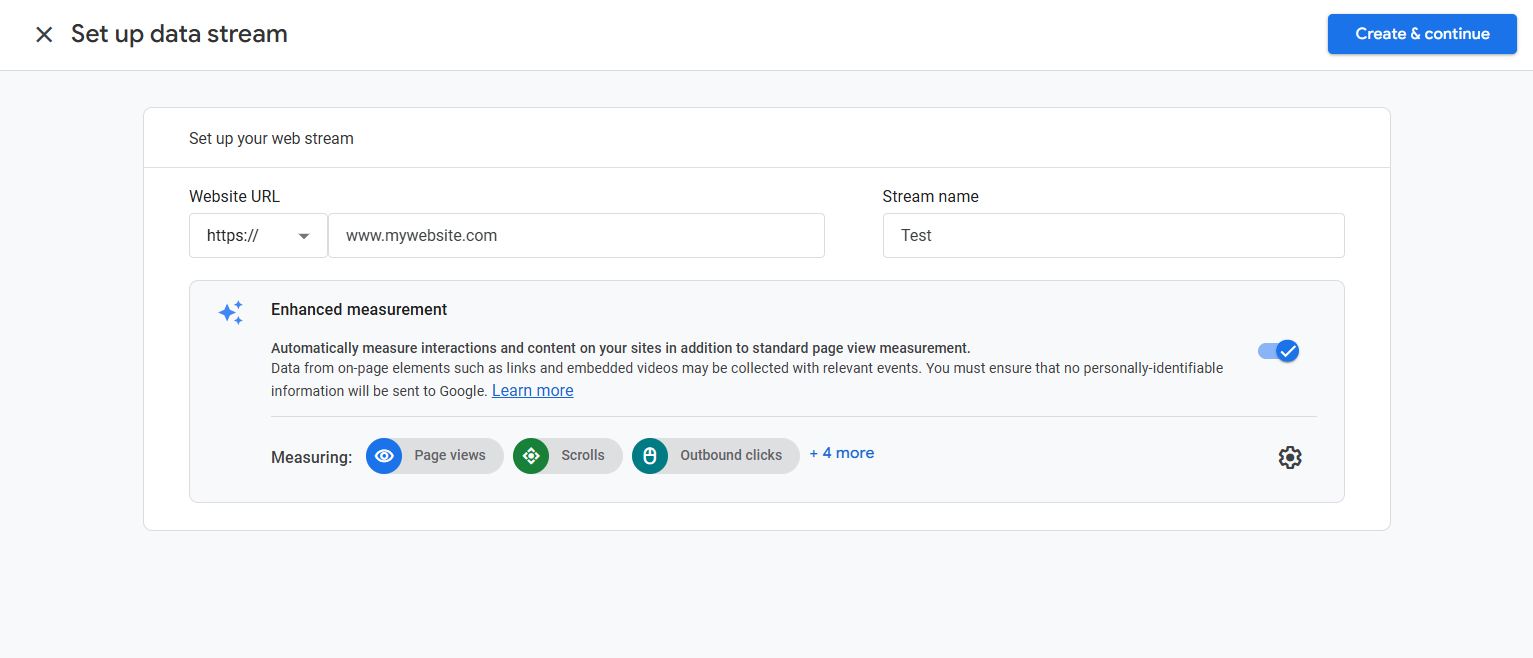
4. Make sure Enhanced measurement is enabled. Click Create & Continue in the upper-right corner.
5. After saving, your website will appear in the Data streams list. Click Next below your site.
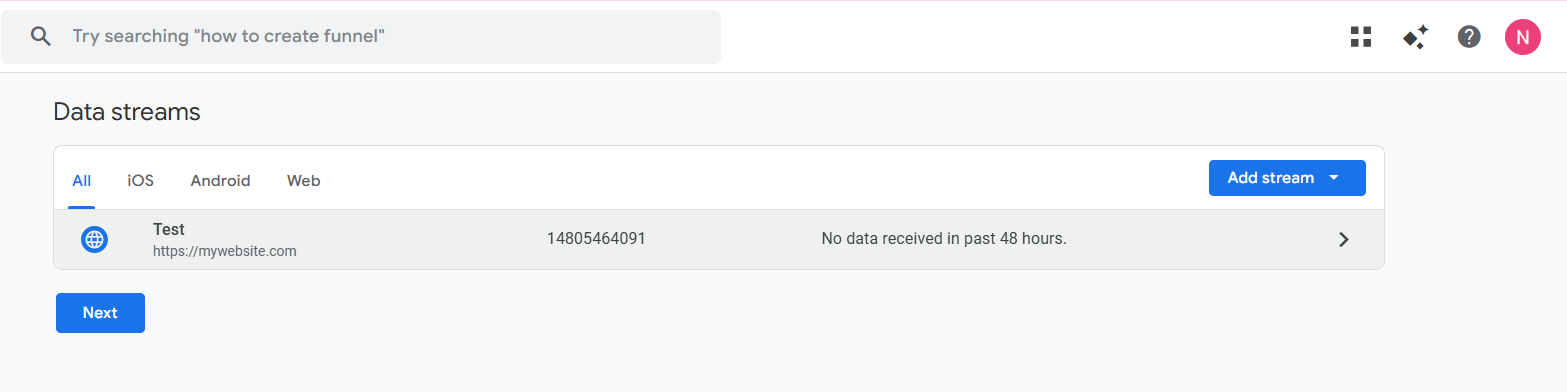
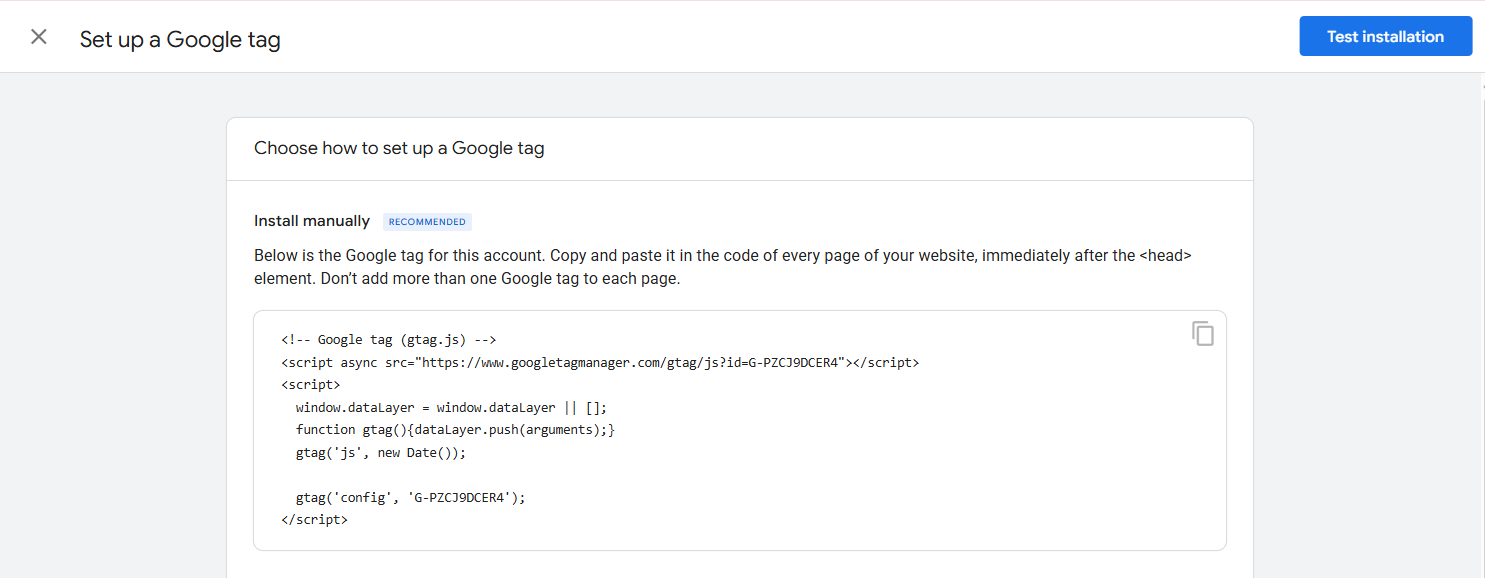
6. Choose the manual setup option, then copy and install the Google Analytics script into your website’s code.
7. After installation, the widget will automatically start sending events to Google Analytics. Here’s what they mean:
| Event | When it occurs |
| ITL_CALLBACK_OPEN | User clicked the widget button |
| ITL_CALLBACK_SHOW | Widget sppeared automatically |
| ITL_CALLBACK_FILL | Click on the phone number input field |
| ITL_CALLBACK_CALL | Click on the CALL ME button (submitting a request) |
| ITL_CALLBACK_CLOSE | Widget closed |
This is enough to create a funnel — from opening the widget to submitting a callback request.
How to Check That Events Are Being Tracked
- Open your Google Analytics account.
- Go to Reports — Realtime overview. For more details about this report, please see this article.
- Open your website widget and perform a test action.
- Within a few seconds, the event will appear in the report.
If events are not displayed, check that both scripts are installed and that there are no errors in the browser console. For example, in Google Chrome, open the console by pressing F12 → the “Console” tab. Lines highlighted in red indicate issues with your website code (JavaScript, CSS, network requests).
